Work a call
1. Acknowledge the call
When dispatch assigns a call to your unit, this prompt shows on top of any screen. Dispatch can also ask you to acknowledge again.
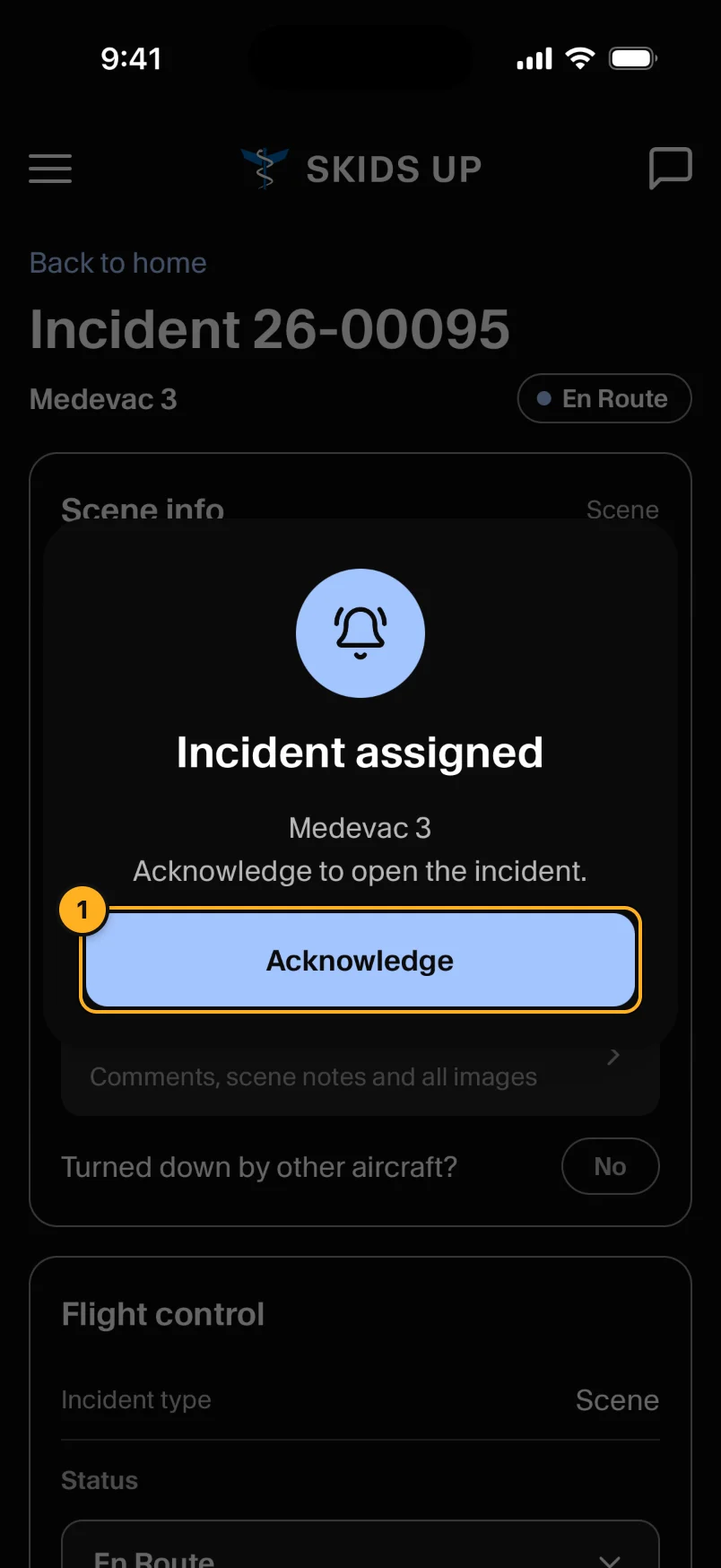
- Tap Acknowledge. Dispatch sees who acknowledged and when. The call opens.
Acknowledging does not accept the call. The status stays Assigned.
2. Accept the call
While the call is Assigned, the status choices are Accept Call, Weather Check, Declined and Standby Accepted. Choose one, then tap Submit.
Accept Call opens the RAM for this call. Check the answers, sign, and tap Sign and accept call. You must have signal to sign. See RAM.
3. Read the scene
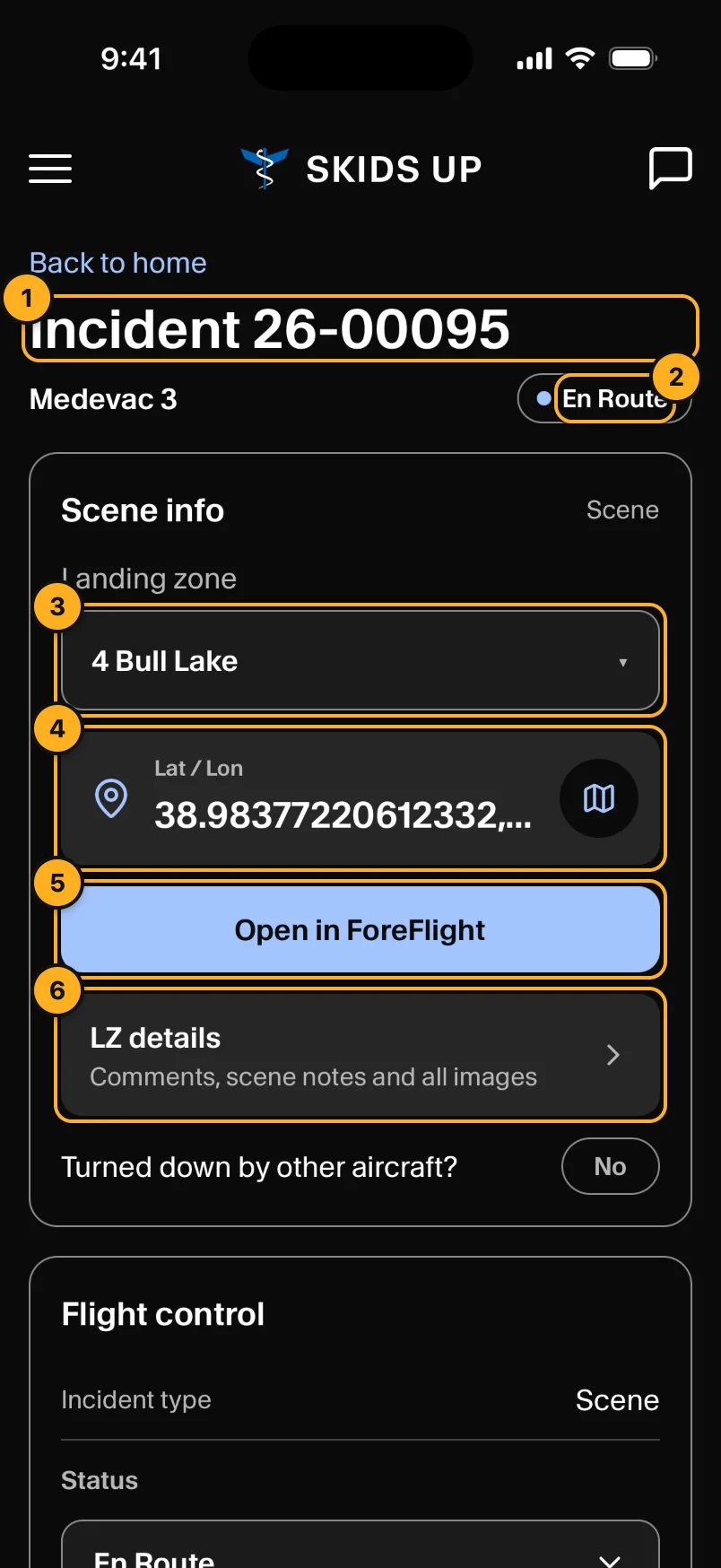
- Call number and your unit.
- Status: where the call is now.
- Landing zone: the landing zone for the call. Pilots can change it.
- Lat / Lon: the scene coordinates. Tap to get directions in Google Maps.
- Open in ForeFlight (iPhone): open the scene in ForeFlight. If ForeFlight is not installed, Google Maps opens.
- LZ details: the landing zone's distance from the scene, its coordinates, comments and photos.
Turned down by other aircraft? shows Yes if another program declined the call, with the reason.
4. Update your status
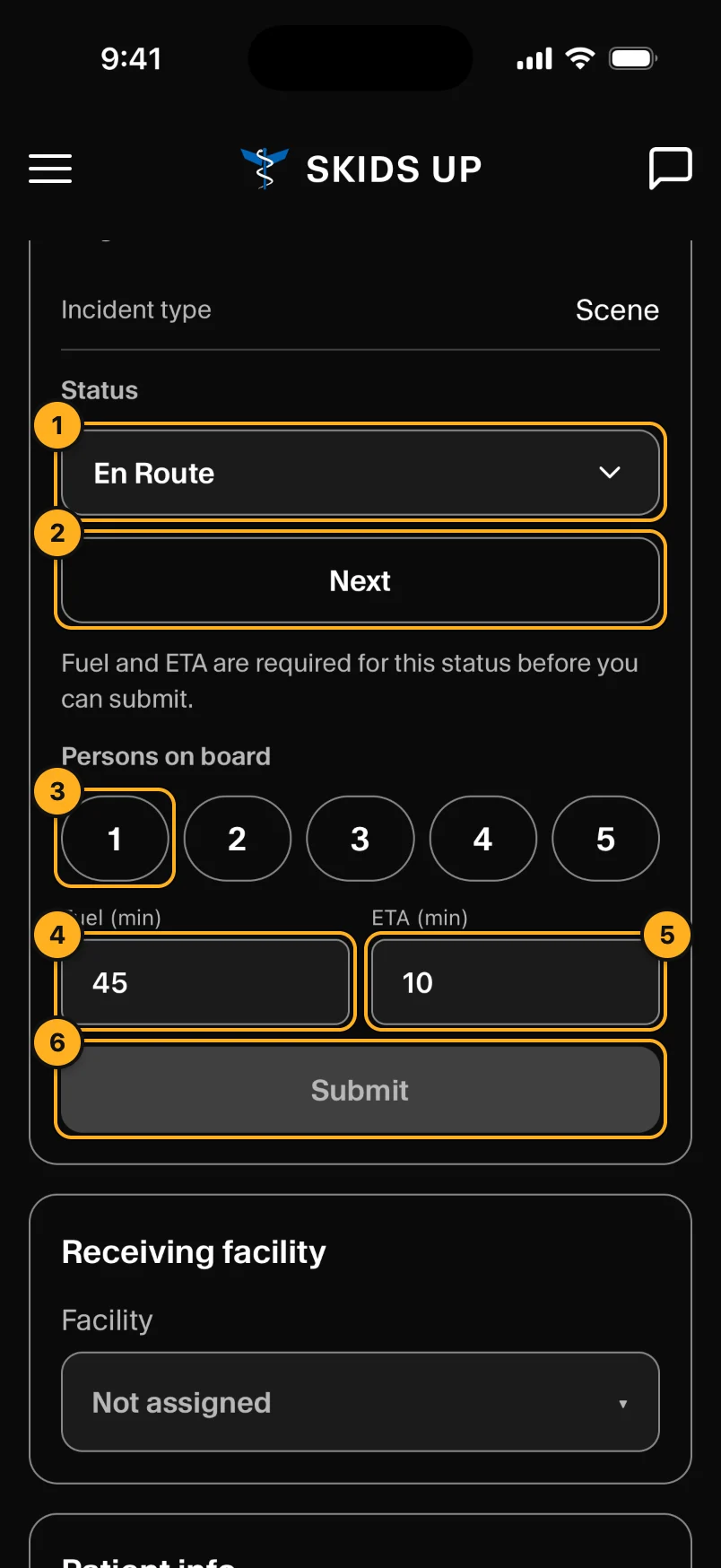
- Status: the status you are about to send.
- Next: move to the next status. The order is En Route, On Scene, Transporting, At Destination, En Route to Base, then Flight Completed.
- Persons on board: tap 1 to 5.
- Fuel (min): fuel on board, in minutes.
- ETA (min): minutes to the next stop.
- Submit: send the status, persons on board, fuel and ETA to dispatch. Nothing is sent until you tap Submit.
En Route, Transporting, En Route to Fuel and En Route to Base need fuel and ETA. If fuel minus ETA is less than 25 minutes, the app shows Fuel reserve under 25 min.
To choose a different status, tap the status. The full list opens.
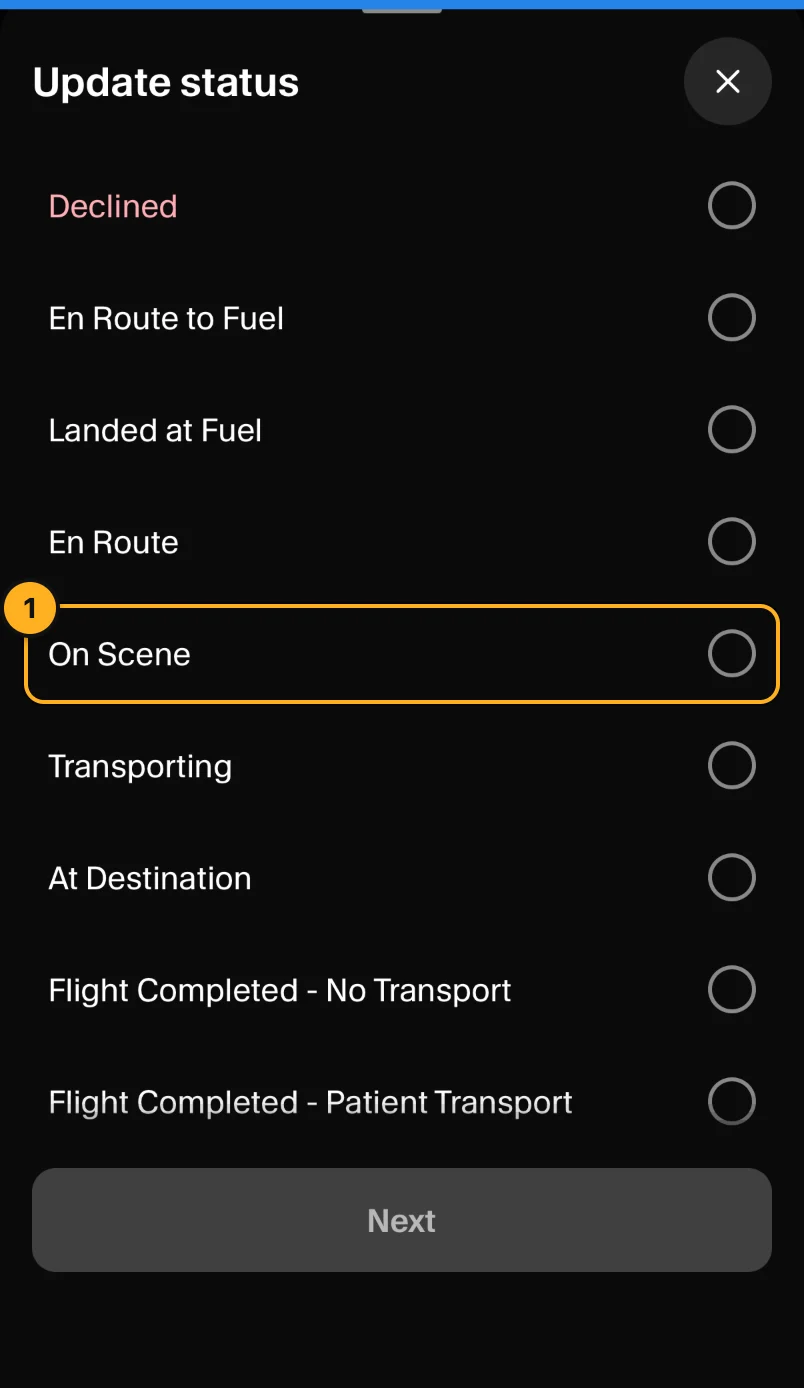
- Choose a status, then tap Submit on the call.
These statuses end the call and return you to home: Declined, Aborted Flight, Flight Completed - No Transport and Flight Completed - Patient Transport. A call also closes when dispatch cancels or closes it. En Route to Base, Cancelled - Returning to Base and Standby Go do not end the call.
The app sends your position to dispatch only while the call is open on your screen. Keep Skids Up open on the call during the flight.
5. Facility and patient
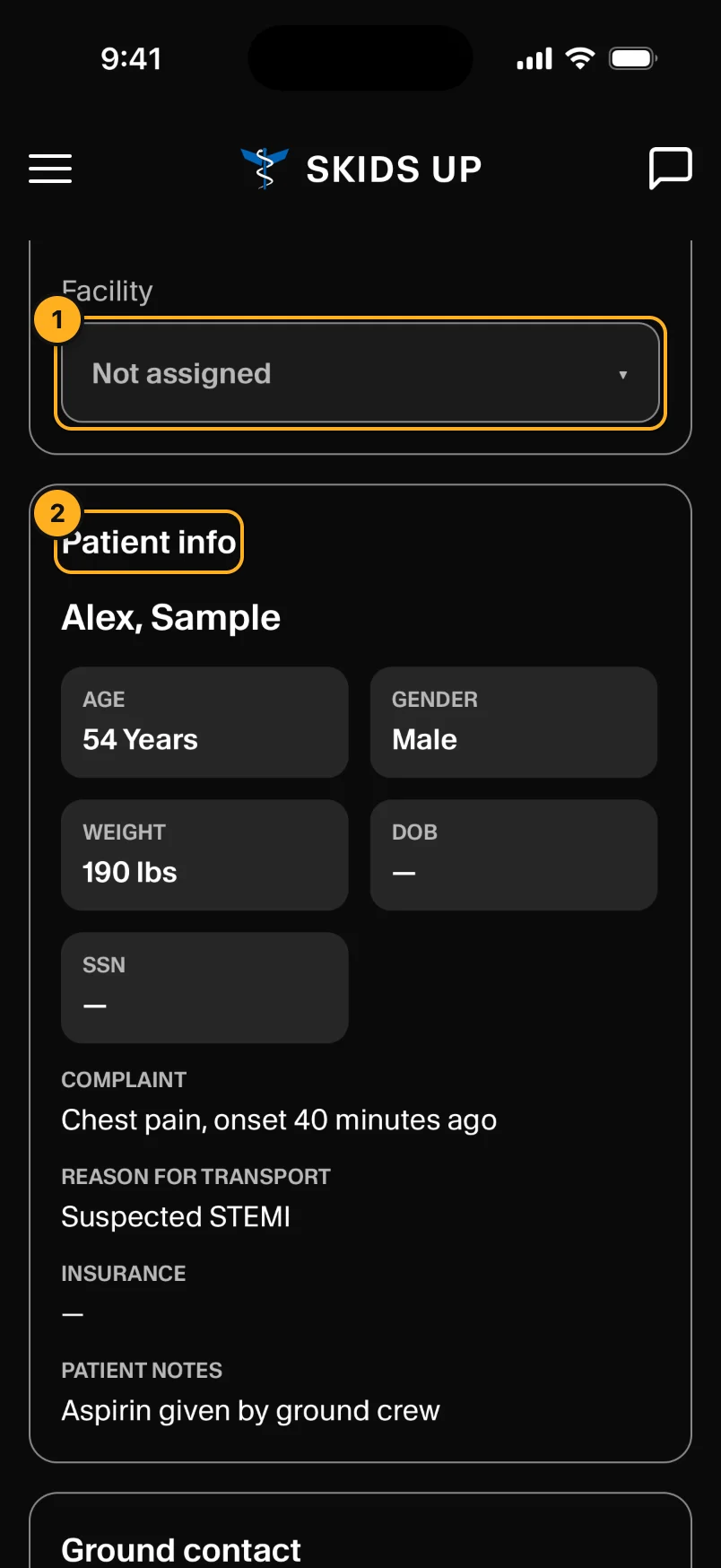
- Receiving facility: where you are taking the patient. Pilots can change it. When the facility has coordinates, it also has Open in ForeFlight.
- Patient info: name, age, gender, weight, date of birth, complaint, reason for transport, insurance and notes, as dispatch entered them.
6. Contacts, notes and status log
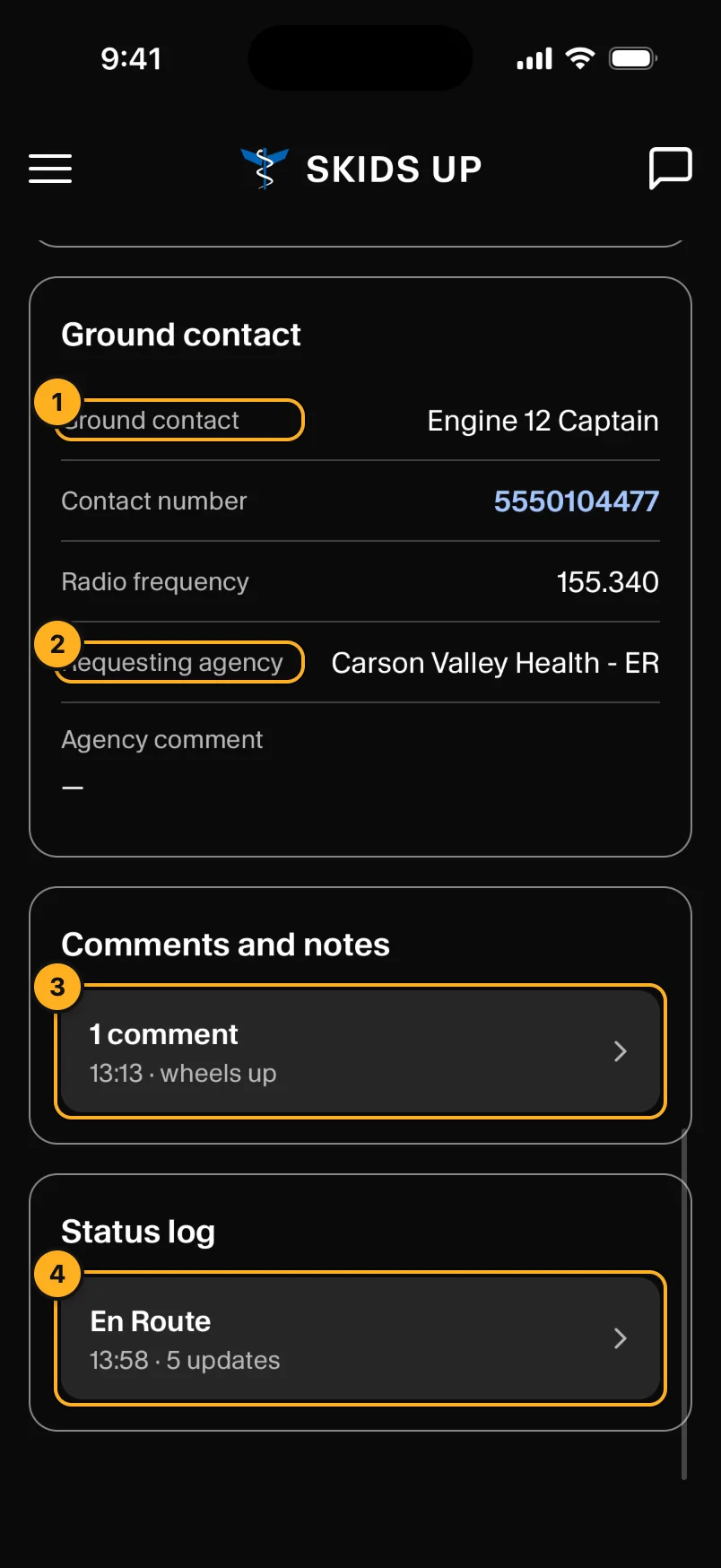
- Ground contact: the person on scene, their number and the radio frequency. Tap a number to call it.
- Requesting agency: who asked for the flight, and their comment.
- Comments and notes: notes from dispatch. Tap to read them all. Crews cannot add notes here. Use Chat.
- Status log: every status change and flight update, with times.
When the call ends, or dispatch moves it to another unit, the app returns you to home.
Crew phones
Crew phones see the whole call and can acknowledge it. The status, fuel and ETA show as Read Only. Only the pilot can change them.