Find your way around
Live is where you'll spend your shift: every waiting request, every call in progress, the map and your fleet on one screen. It updates on its own — you never need to refresh.
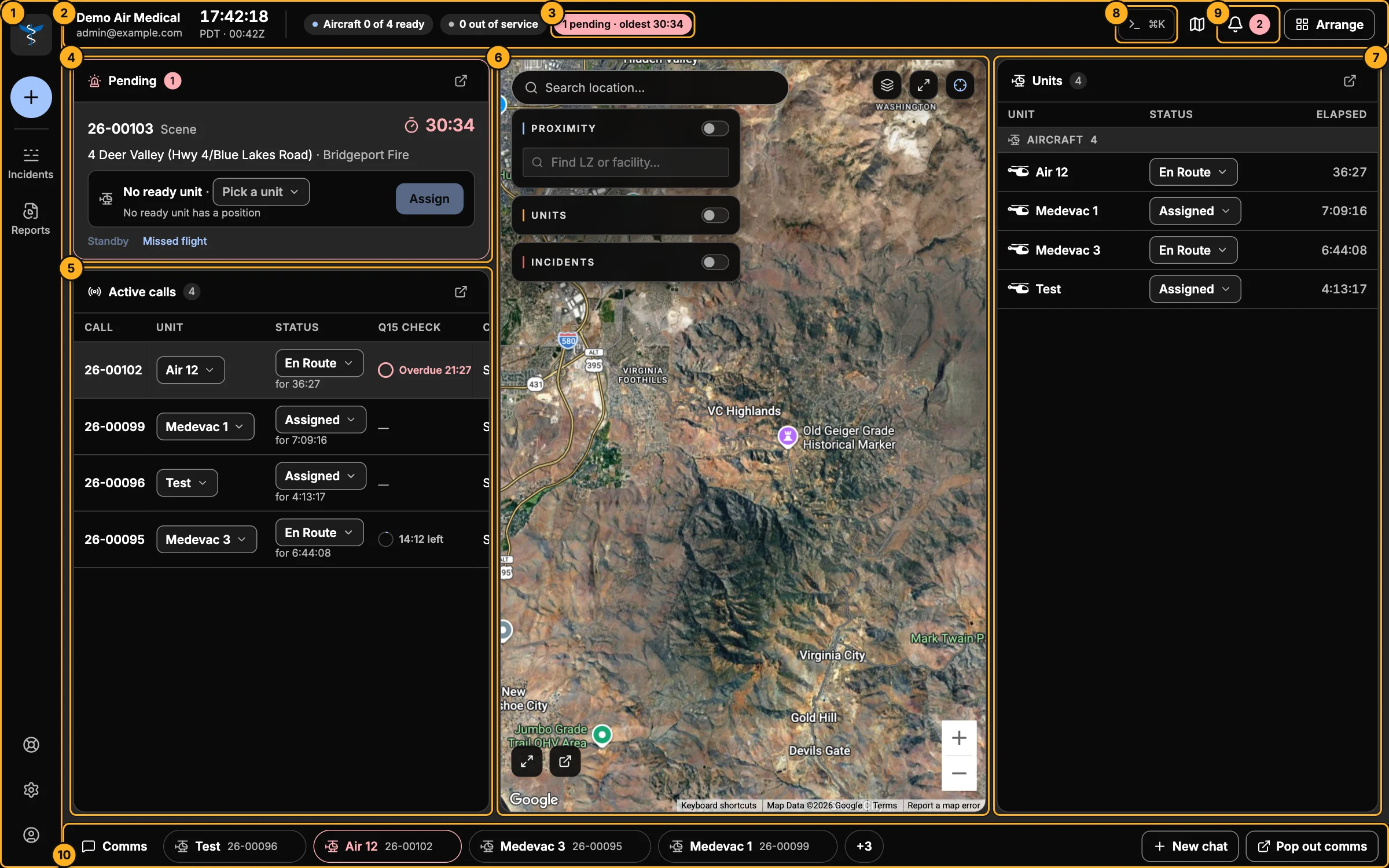
- Left rail — the AMT logo always brings you back to Live. + starts a new incident. Then Incidents and Reports, and at the bottom Contact support, Settings and your account.
- Status strip — your company, who's signed in, and the time (your company's time zone and Zulu), with your fleet at a glance: aircraft ready, ground units ready, units out of service.
- Pending — how many requests are waiting and how long the oldest has waited. It turns amber, then red, as a request waits too long (why).
- Pending board — requests not yet sent to a unit. See Pending requests.
- Active calls — every call with a unit: its status, how long it's been in that status, and its 15-minute check. Click a row to work the call.
- Map — units, calls, landing zones and facilities. See Map.
- Units — every unit, its status and how long it's been in it. See Units.
- Command line — do almost anything from the keyboard with ⌘K. See Keyboard and the command line.
- Notifications — 15-minute checks, ground-time alerts, reassignment requests and updates. See Notifications.
- Comms — your open chats with crews and agencies. See Chat.
Next to the bell are the full-screen map button and Arrange, which chooses the boards Live shows and moves any of them to another monitor (Multiple monitors).
Drawers
Clicking a call or a unit opens a drawer on the right with everything about it, without leaving Live. Press Esc or the × to close it.
Light or dark
The console is dark by default, for low-light dispatch rooms. Switch to light in Settings → Display.