Map
The map is on Live, full-screen (the map button next to the bell, or g m),
and can open in its own window for another monitor.
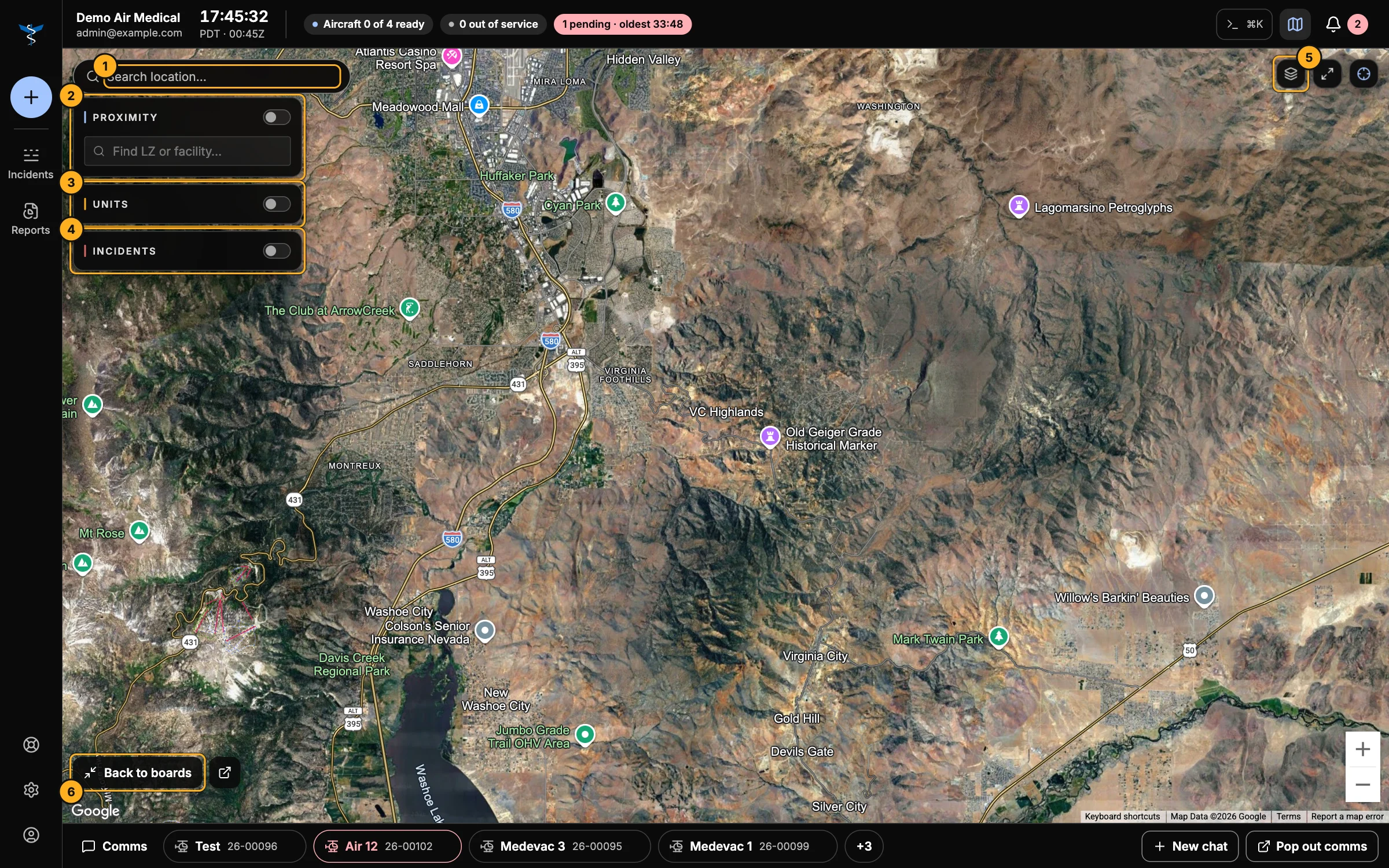
- Search location — find an address or place. Find LZ or facility… jumps to one of yours.
- Proximity — show the landing zones and facilities within range. While a call is charted, choose what to measure from (the unit, the scene or the view) and how far (10, 25, 50 or 100 miles).
- Units — show unit markers. Stale marks units whose position is old.
- Incidents — show pins for active calls.
- Map controls — basemap (Hybrid, Satellite, Map, Terrain), fit the map to everything it's showing, and call photos.
- Back to boards returns to Live; the icon beside it opens the map in its own window.
Follow a unit
From a call, Follow unit keeps the map on the unit as it moves. From a unit, Locate finds it. Chart unit to the call (in the call's More actions) draws the unit and the scene together.
Replay a flight
Open a closed call and choose More actions → Replay flight track. The map plays the flight back with Play/Pause, Back to start, a slider, elapsed and remaining time, and speeds of 1×, 2×, 4× and 8×. Export track downloads the track.
Setting a location
On the New incident, landing zone and facility forms, the map sits beside the form: click it or search to set the location.
What the map remembers
The map keeps your layers, basemap, position and zoom on this computer. Choose which controls appear, or clear what it remembers, in Settings → Map.