Reports
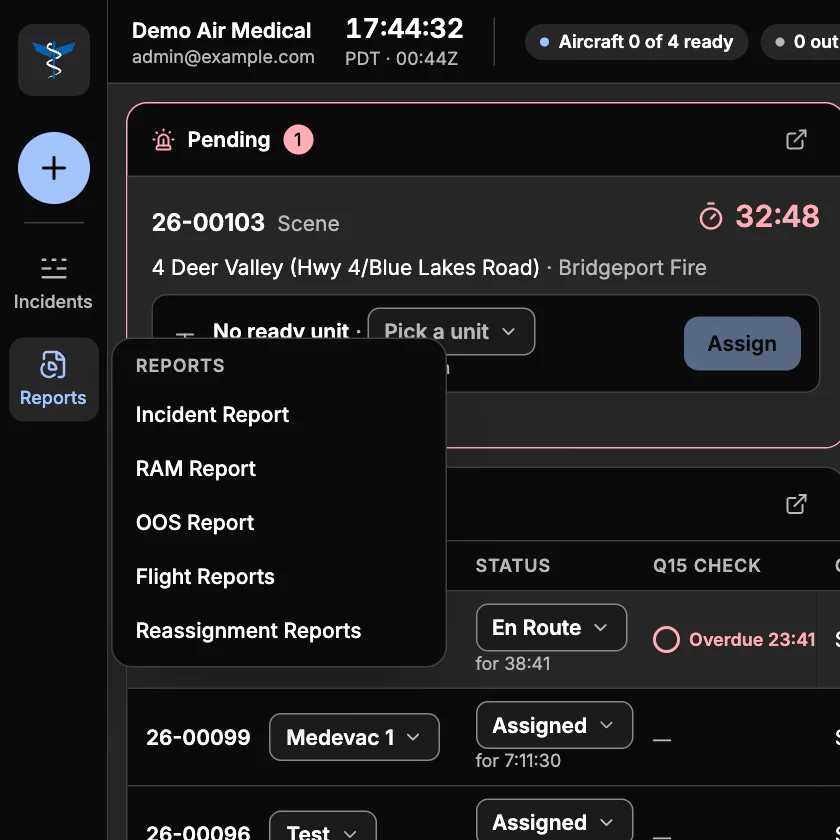
Click Reports on the left rail and choose a report.
Every report has Search records, a filter for dates and times (time received and date created, with Clear filters) and a download button. Lists show ten rows per page.
Incident report
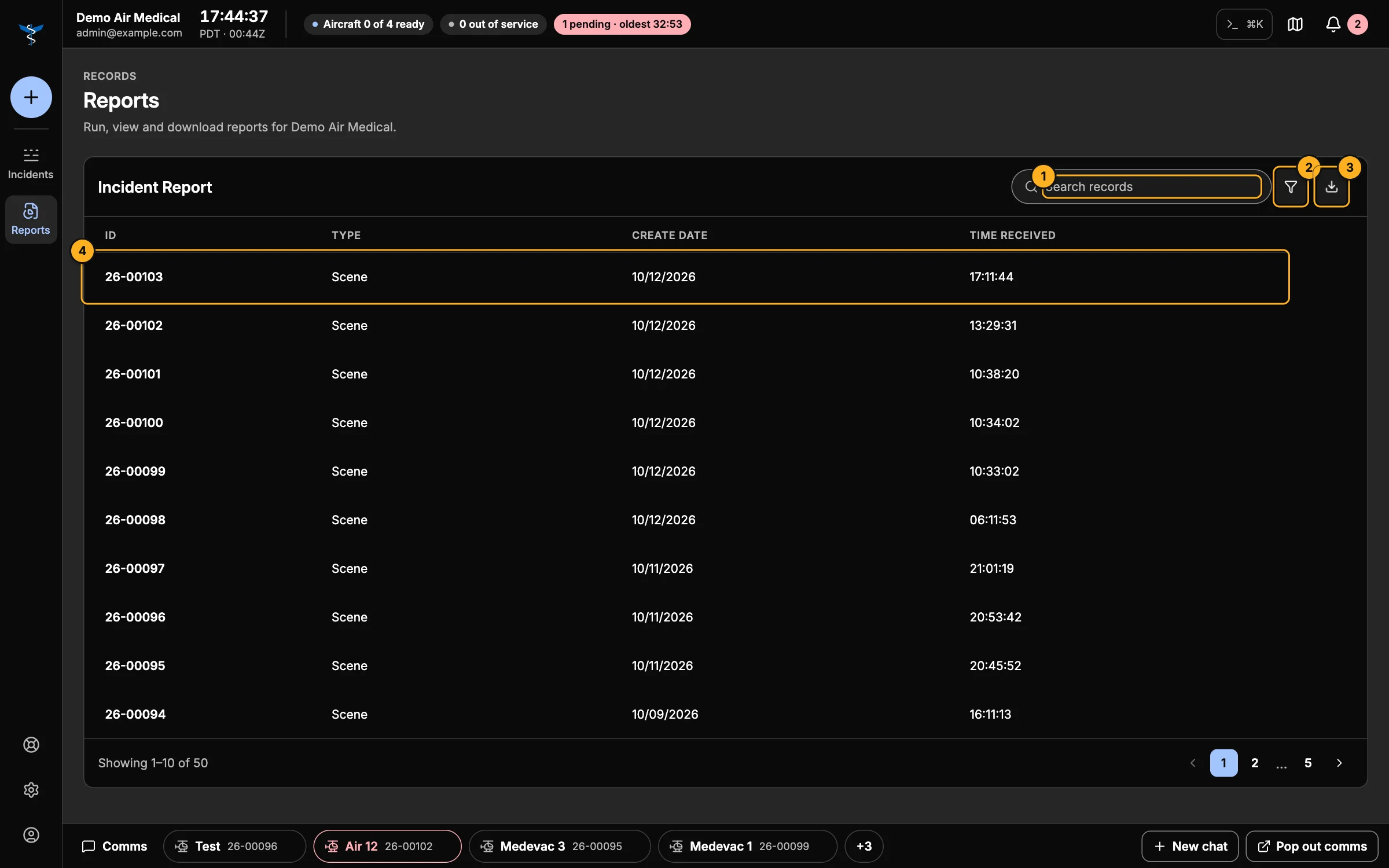
- Search records.
- Filter by date and time.
- Download — every report in the filtered list, zipped.
- A call — opens its report. If none has been made yet you'll see No report generated yet and a Generate report button.
RAM report
The risk assessment each crew completes for a flight: incident, unit, RAM score and date. Click a row to open it. Download zips the filtered list.
OOS report
Every time a unit was out of service: unit, status, how long, the comment, and when it started and ended. Download saves it as a spreadsheet (CSV).
Flight reports
Flights by date, unit, status and incident. Filter by Unit and Status (Completed, Cancelled, In Progress, Standby). Download saves a CSV.
Reassignment reports
Every request from a pilot to move crew between units, and what happened to it.
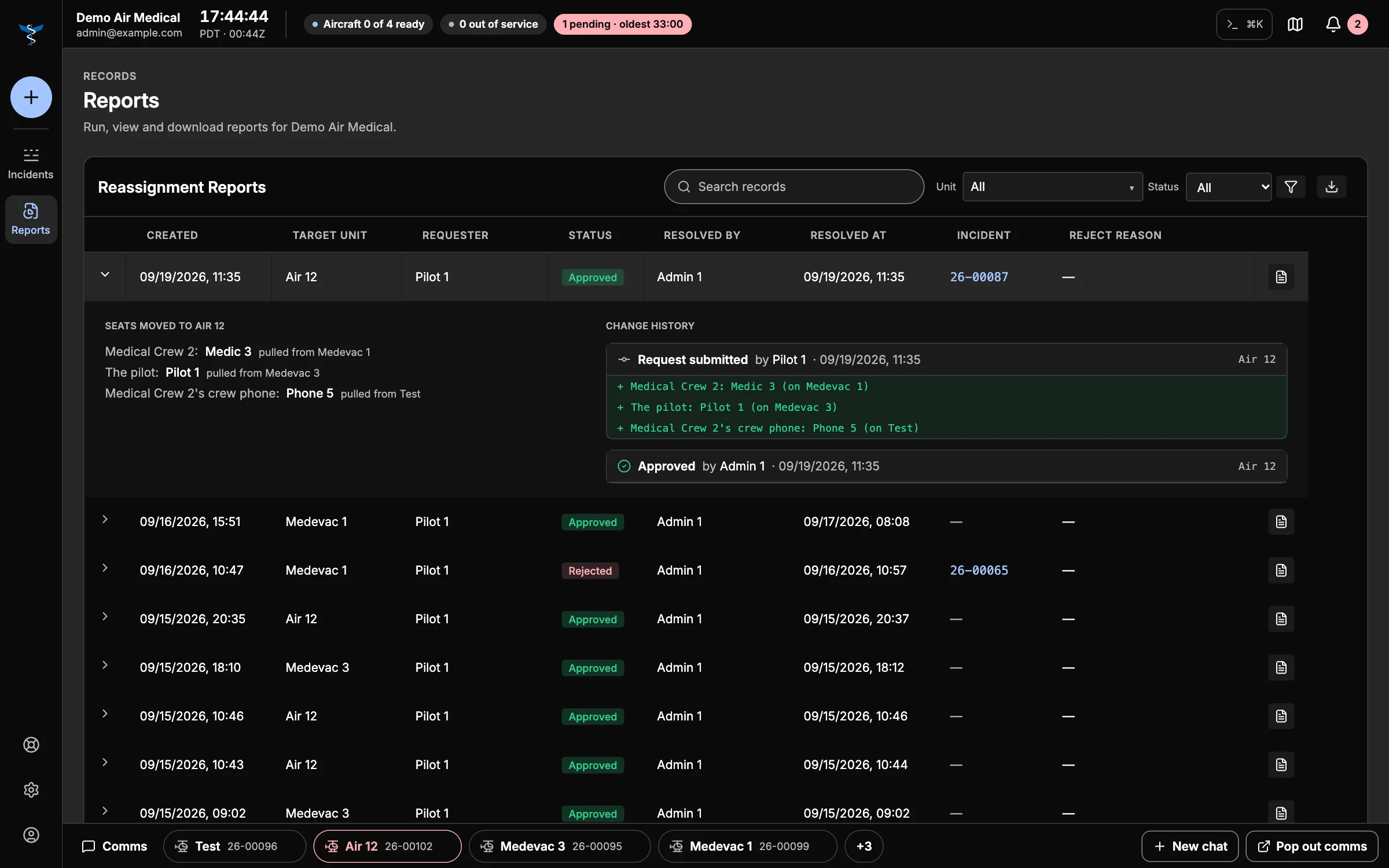
Each row shows when it was made, the unit, who asked, whether it was approved or rejected, by whom and when, the call, and any reason for rejecting it. Expand a row to see which seats moved and the full history. Filter by Unit and Status, download a CSV, or make a PDF of one request.
This report appears when your company uses the AMT AOC desk.
Viewing a report
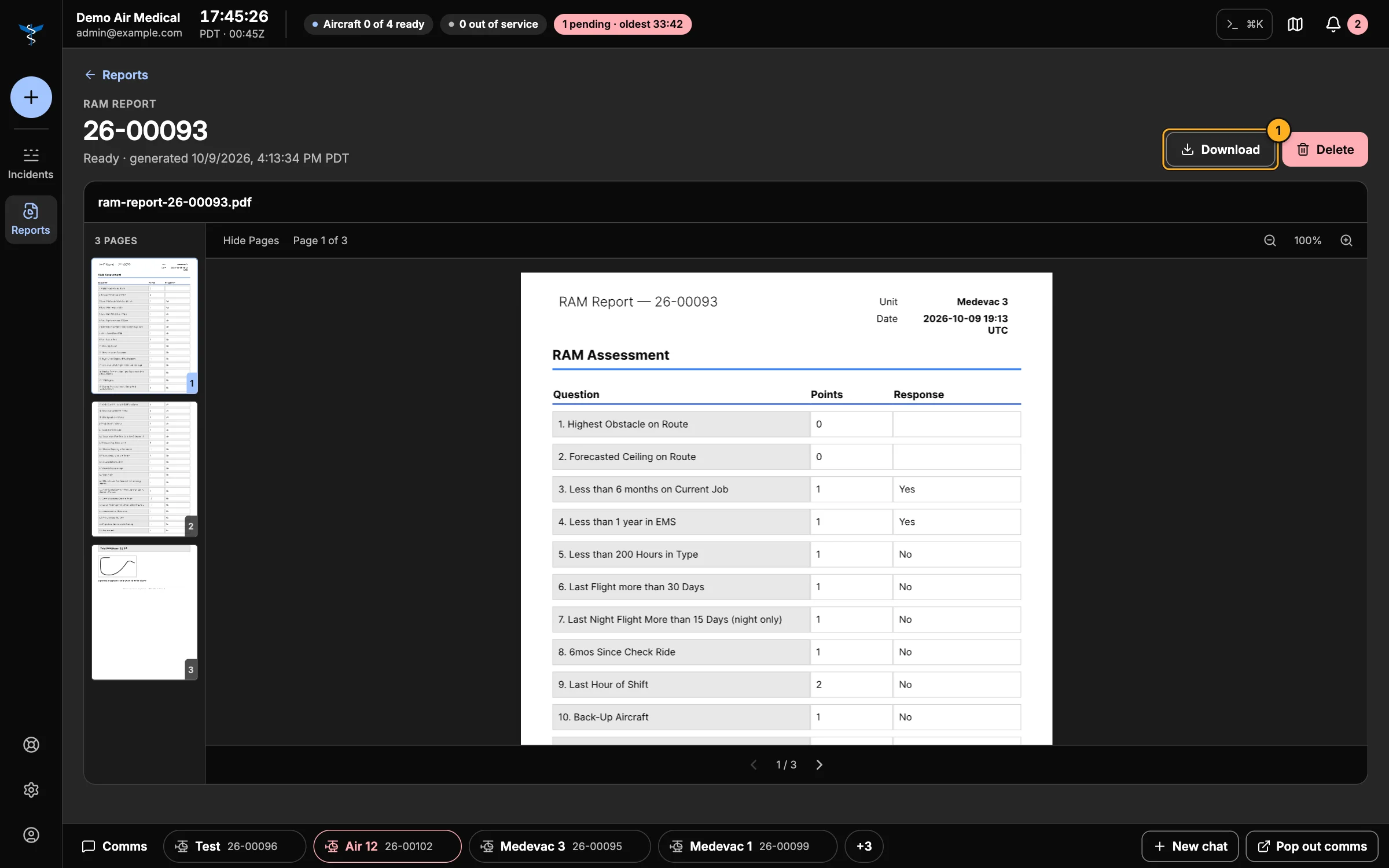
- Download the PDF.
Depending on the report you can also:
- Email it — Email me or Email all recipients (the report email list).
- Regenerate it with the latest details from the call. RAM reports can't be regenerated: they're a signed flight record.
- Delete it.
RAM and incident reports are emailed automatically when they're generated — to your company admin, the call's crew, and your company's report recipients.